
Tasks & shopping
Task lists, shopping lists and Kanban boards.
Task lists
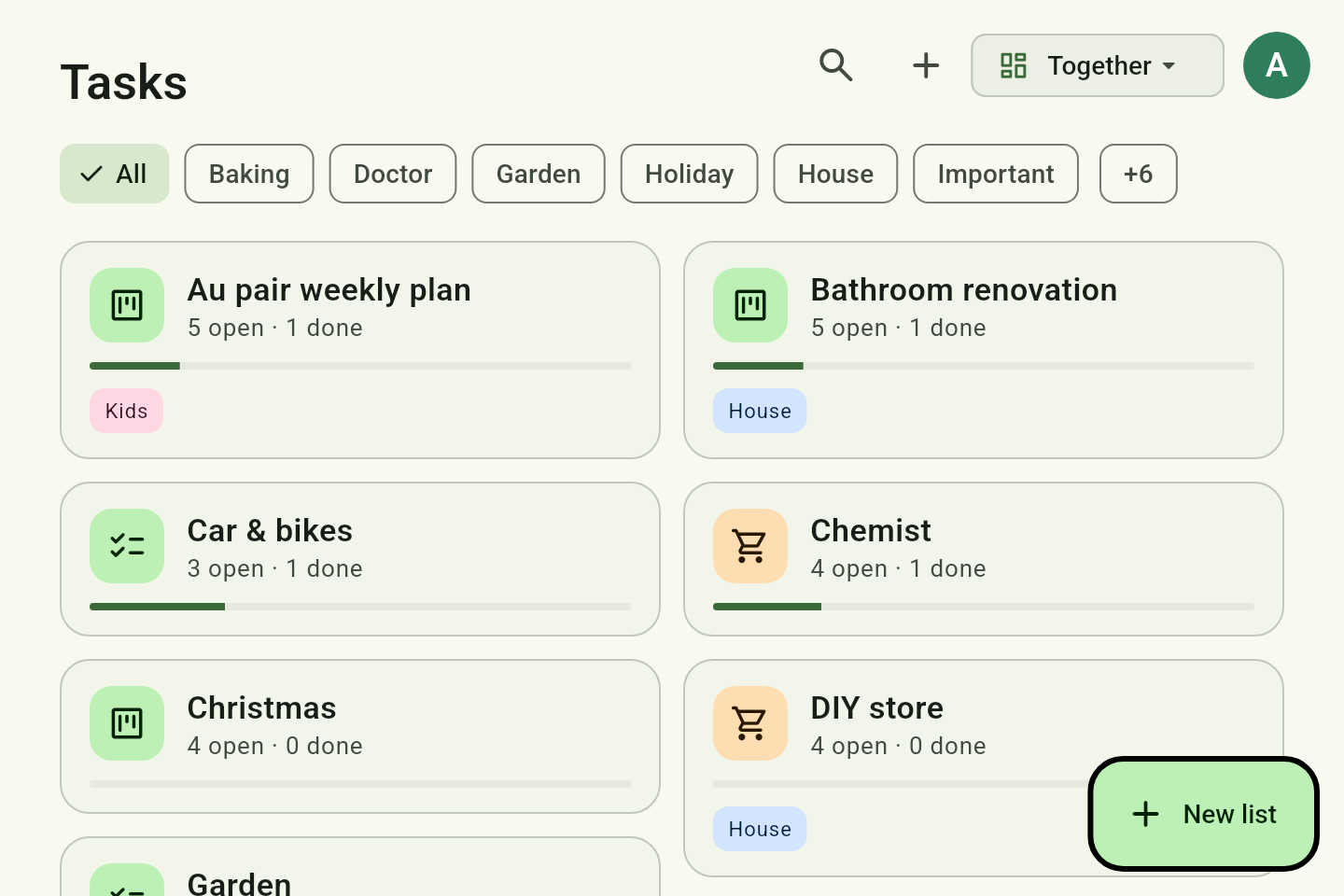
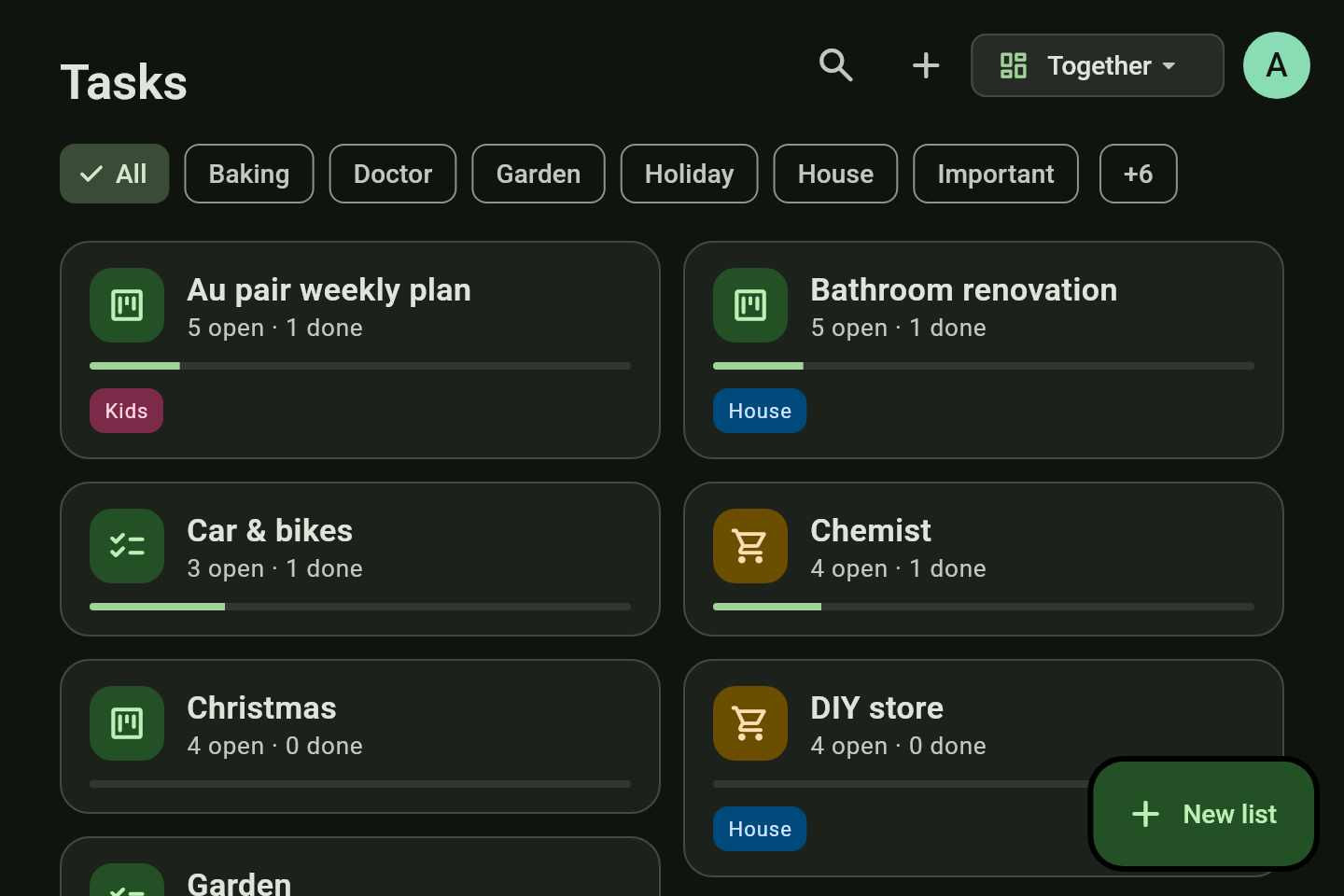
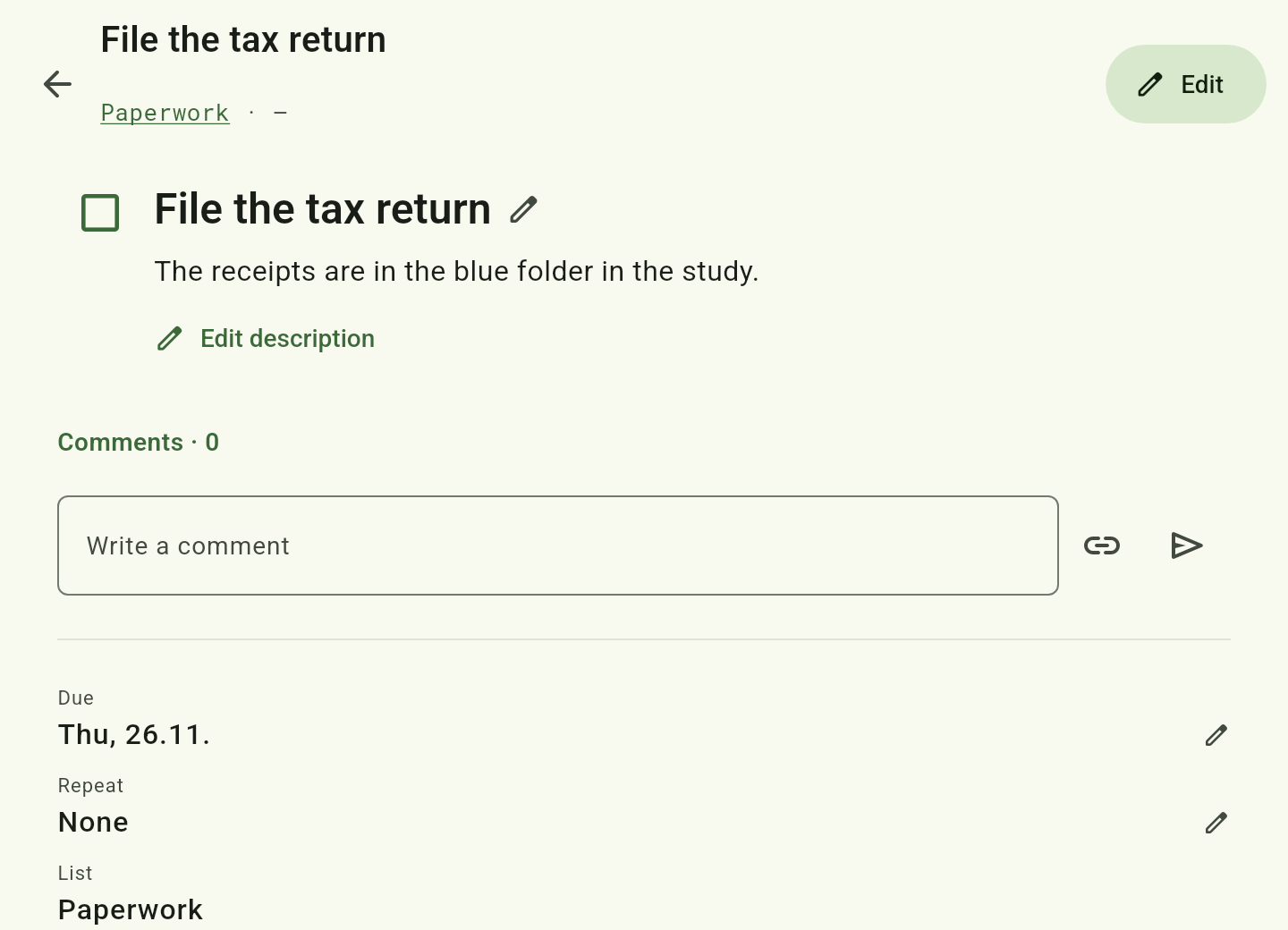
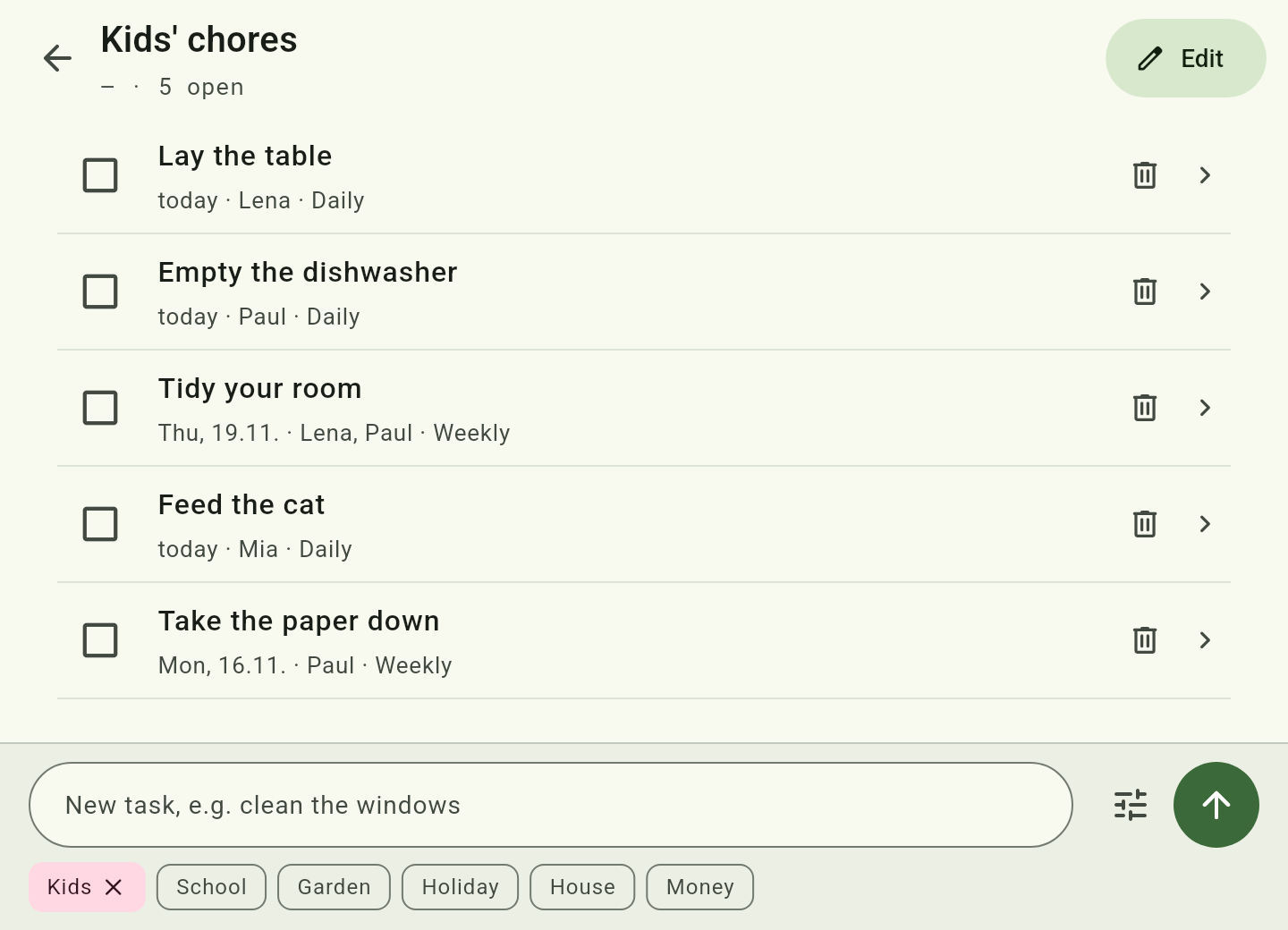
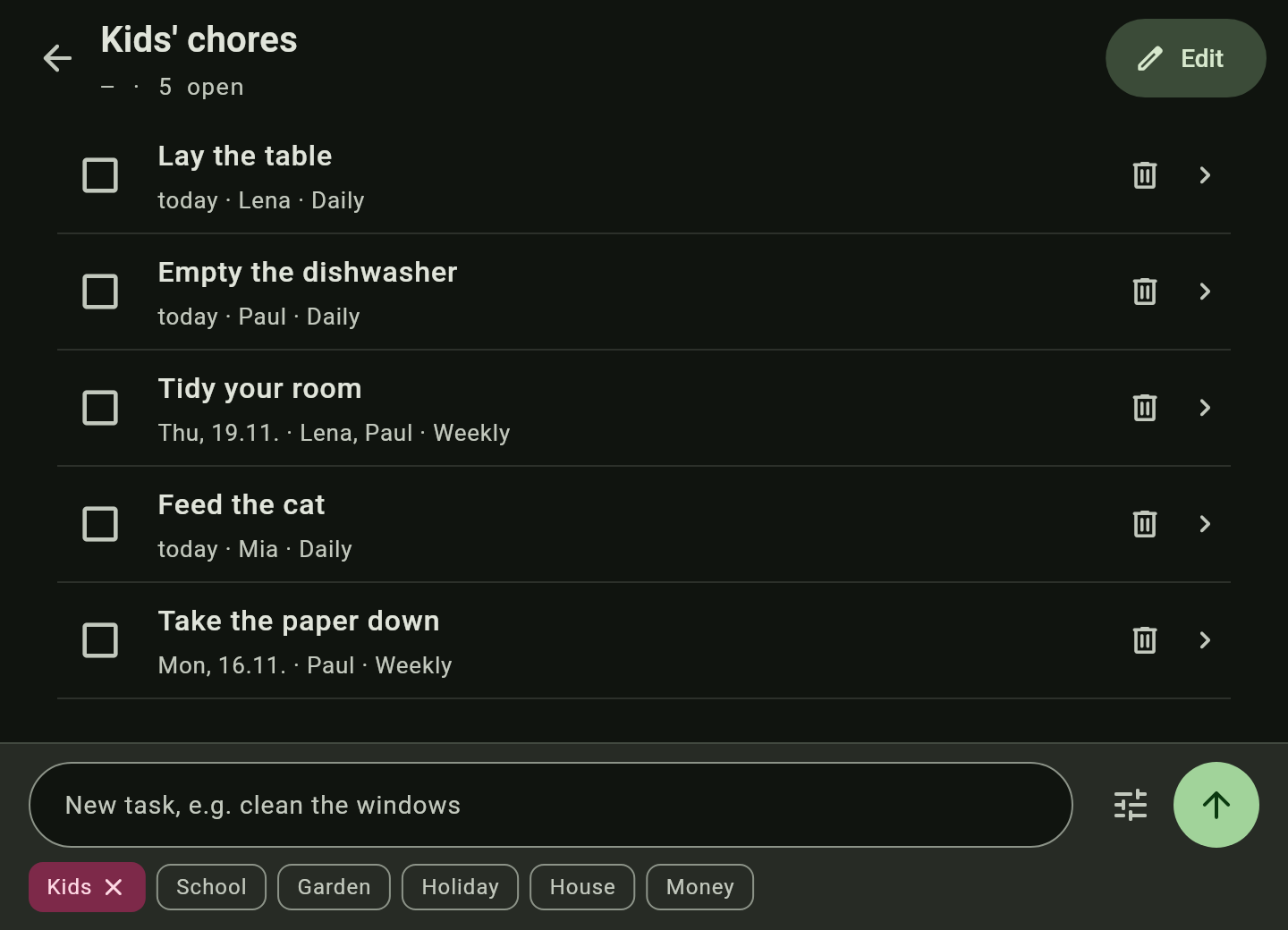
Task lists with due dates, repeats (“every Monday”), assignees and tags. The overview shows every list as a card with its progress; each member sorts them for themselves.
The shopping list
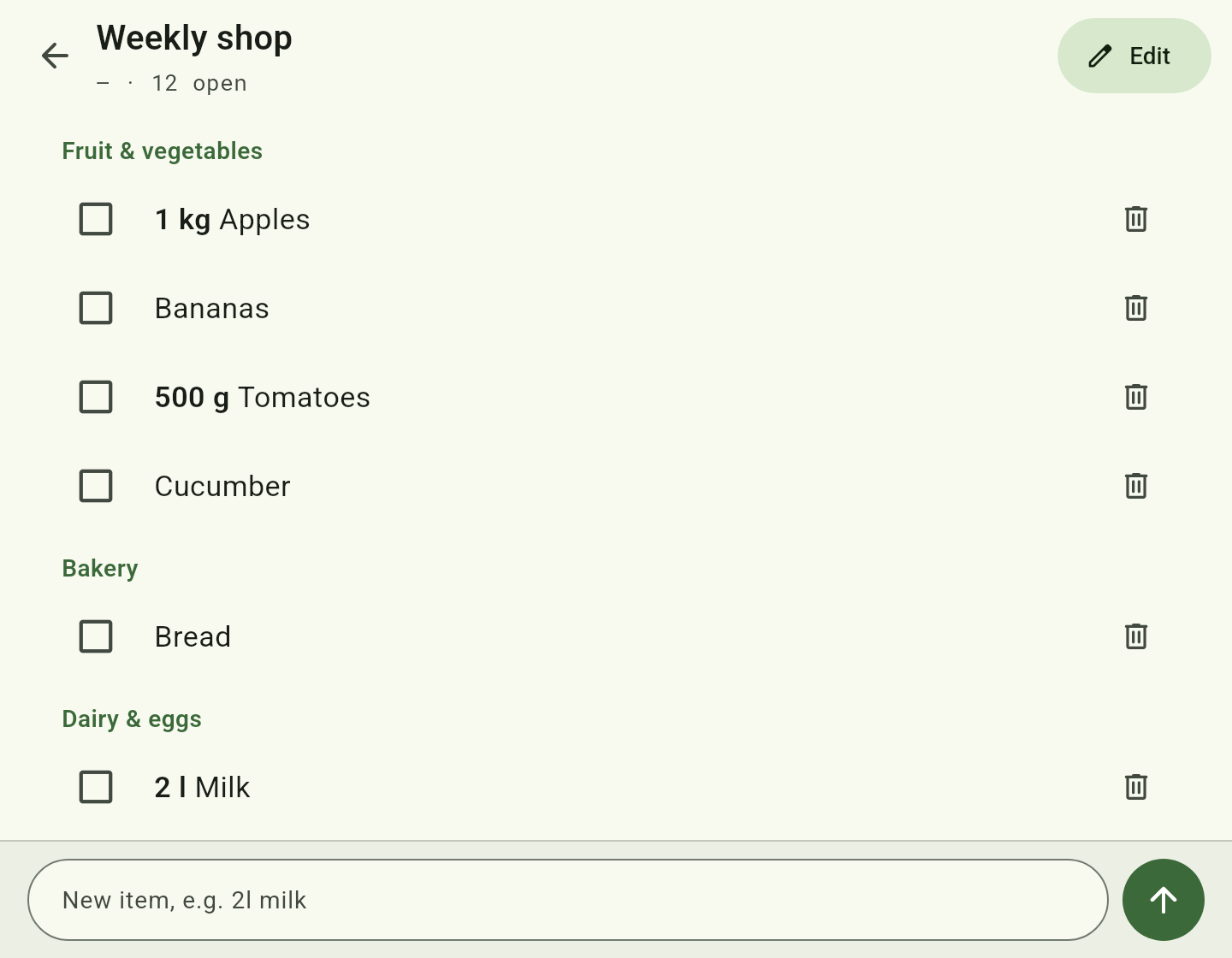
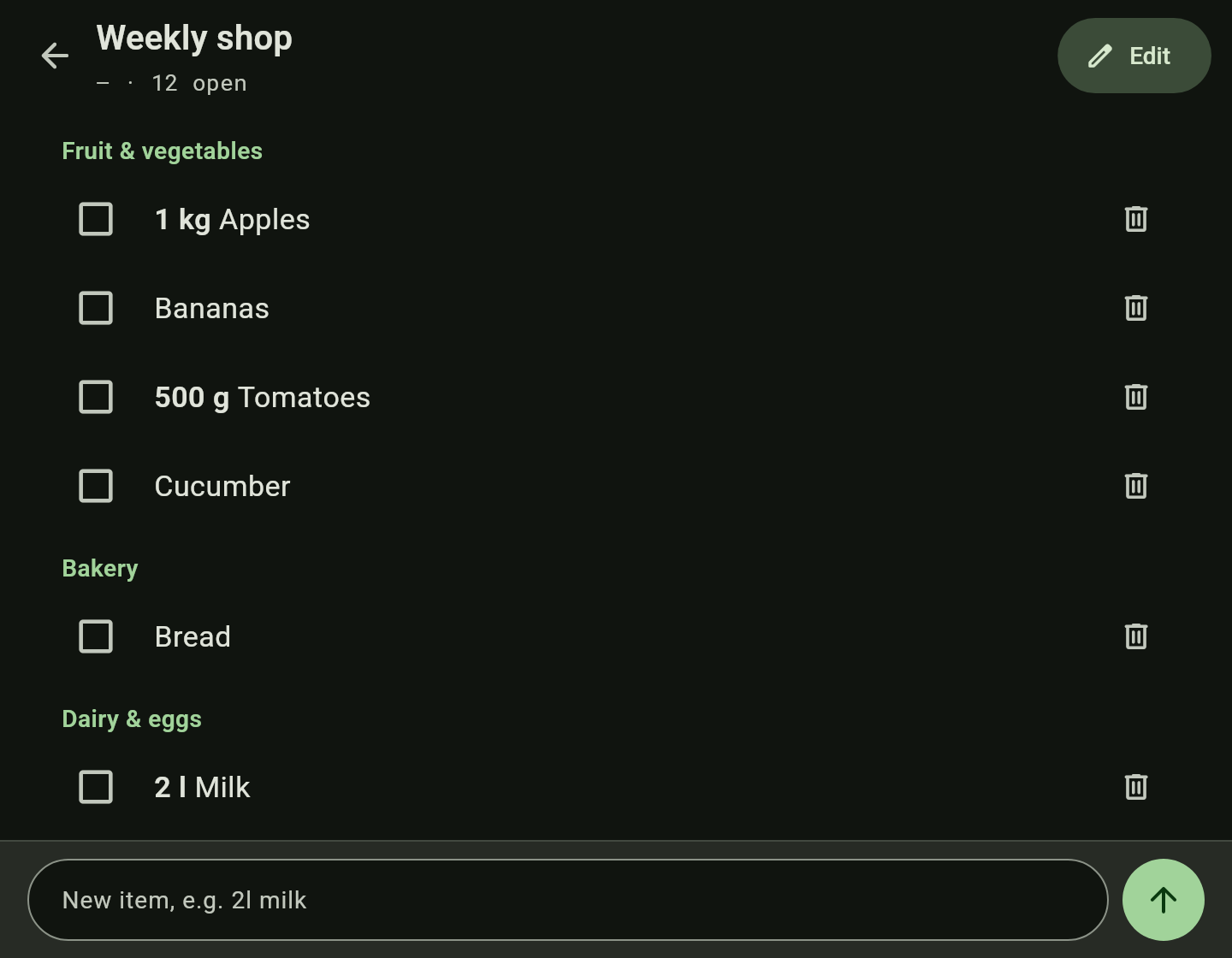
Grouped by category, in an order that applies to the whole family. Drag a product into another category and it lands there in every list from then on. Within a category you sort the rows in the order you walk through the shop. Quick entry understands “2l milk”: amount, unit, product.
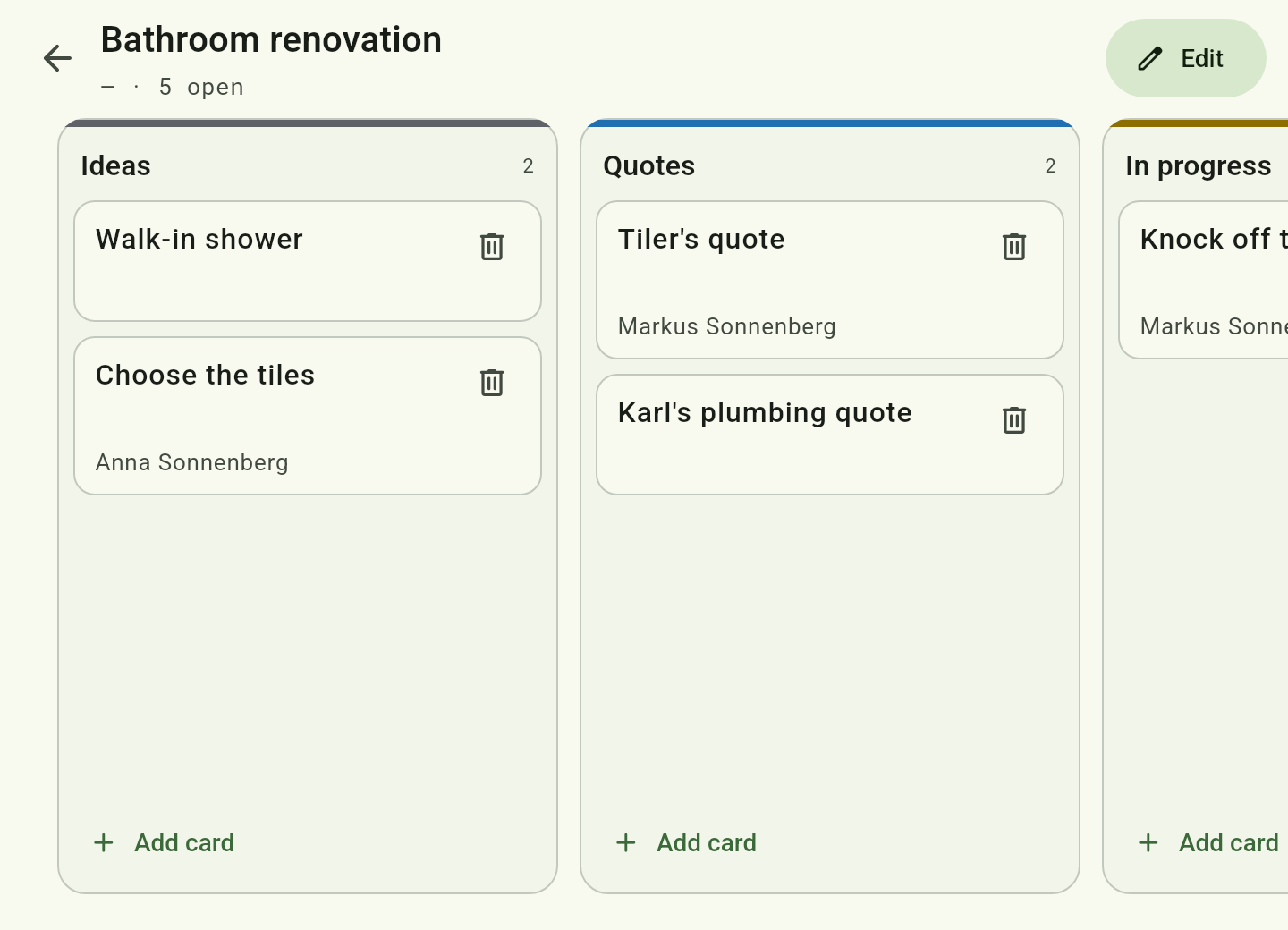
Kanban boards
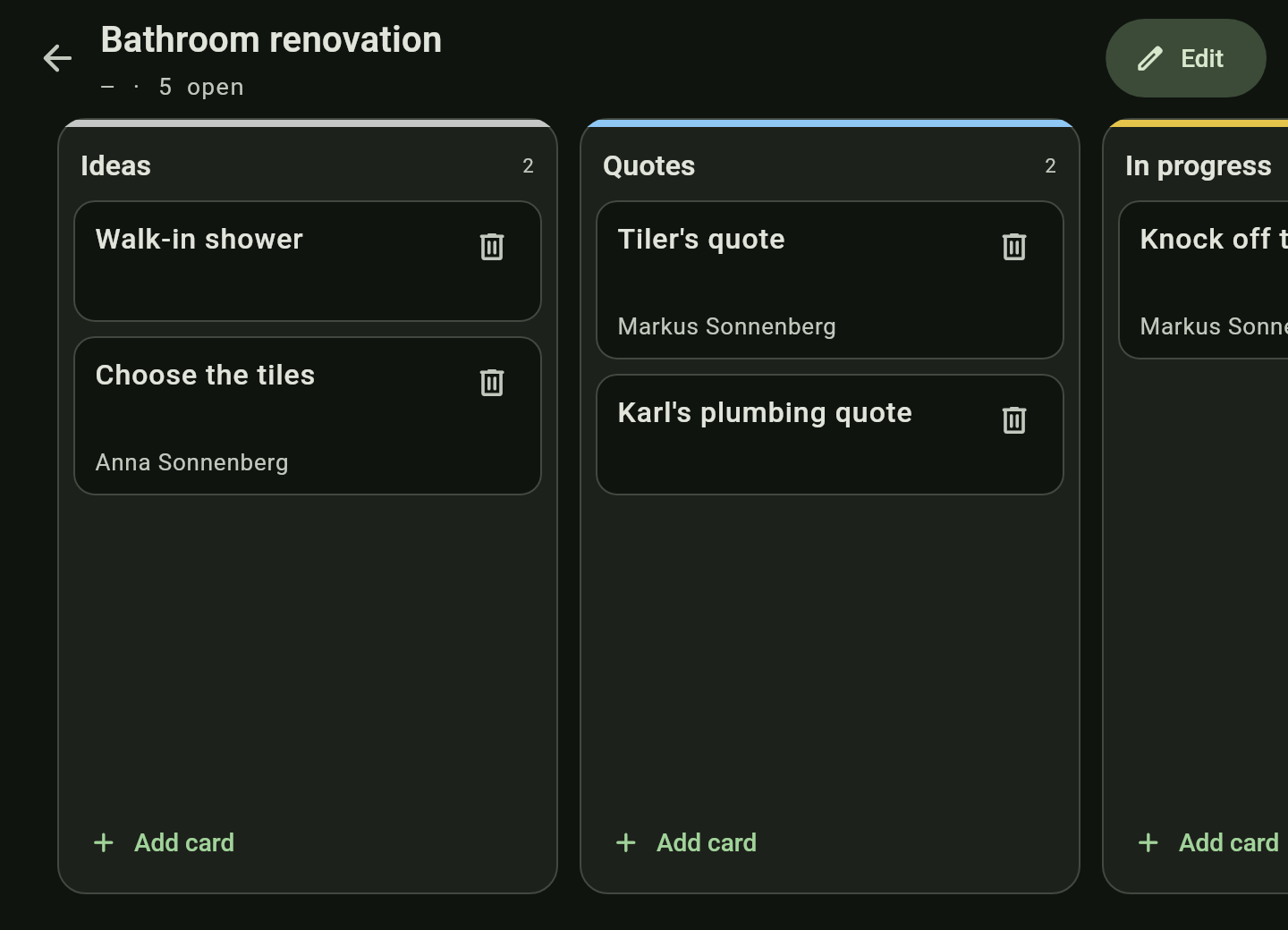
Cards in columns from “To do” to “Done”, moved by dragging. On the phone you see one column at a time and swipe sideways. A plain task list can be turned into a board.
Description and comments
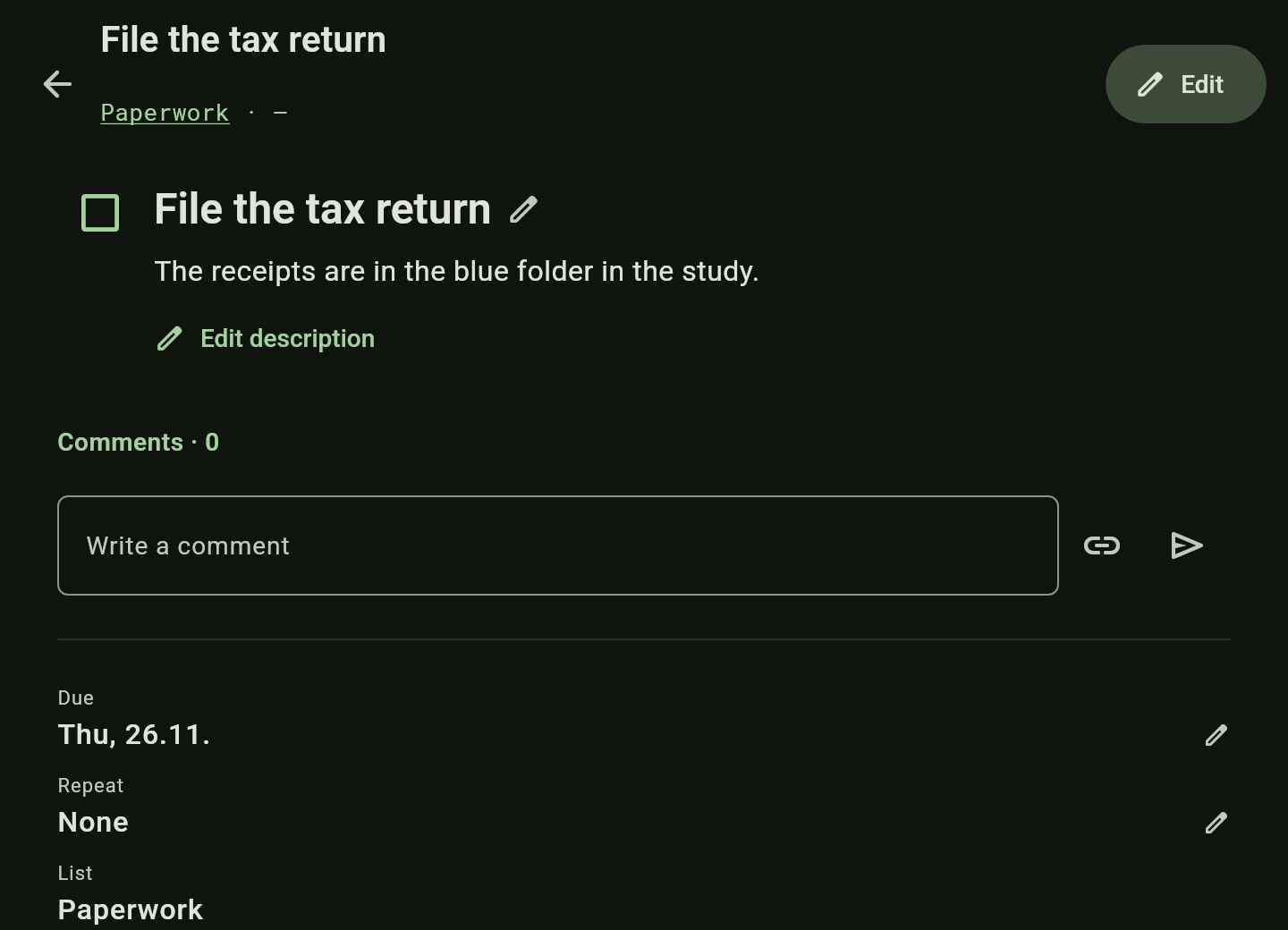
A task has a description with checkboxes, images and links, with comments below it. Ticking off or deleting by mistake can be reversed with “Undo”.
How to
Sort the shopping list the way you walk your shop
The shopping list is sorted in the order you walk through the shop. The order then applies to every shopping list.
You need: a server (categories are kept for the whole family) and the right to write the list.
- Open the shopping list.
- Press and hold a product until it lifts, and drag it into the right category. If that category is not in the list, drag it onto Other category — all the others open up.
- Drop a product on the upper or lower half of another row to put it before or after that row.
- The order of the categories themselves is set under Account → Categories.
On a desktop you drag with the mouse straight away, without holding.
Recurring chores, for example the children's
A recurring task appears again once it is ticked off, with the same assignee.
- Create a task list, for example “Chores”.
- Type into the quick entry at the bottom, then tap More fields.
- Under Repeat choose, say, “Every week, Saturday”, and the child under Assigned.
- Once it is done the child ticks it off — the next one appears by itself. Below the task you see who did it when.
A project as a Kanban board
A board shows for every card which stage it is at.
- In the task overview tap New list and choose Kanban.
- The columns start as “To do / Doing / Done”. Rename them, colour them or add more (up to eight).
- Add card below each column creates a card.
- Press and hold a card and drag it into another column. On the phone the column changes when you hold the card at the edge.
Good to know
- Changing a product’s category needs a connection to the server. Everything else works offline too.
- If two devices both add “milk” while offline, there are two rows afterwards. They are not merged on sync, because that could falsify amounts.
- A shopping list stays a shopping list. Only a task list can become a board; its repeats are dropped on the way.